Posts

Showing posts with the label power bi

Step-by-Step Guide to Using TOPN in Power BI for Dynamic Data Analysis

  DAX Function: TOPN with CALCULATE The TOPN function is one of the most powerful DAX functions for ranking and filtering data in Power BI. Combined with CALCULATE, it can be used to create dynamic, insightful measures. Below is an example of how to use TOPN with CALCULATE to find the top N items based on a certain criterion. Scenario Suppose you have a sales dataset and you want to calculate the total sales of the top 5 products by revenue. This measure will dynamically adjust based on any filters applied in your report (e.g., date, region, etc.). Function Syntax TOPN(<N_value>, <Table>, <OrderBy_Expression>[, <Order>[, <OrderBy_Expression> [, <Order>]]…]) <N_value>: The number of top rows to return. <Table>: The table to evaluate. <OrderBy_Expression>: The expression to order by. <Order>: Optional. Specifies the order direction (ASC for ascending, DESC for descending). Default...
Sorting Day/Month/Year Column in Power BI

 Sorting Day/Month/Year Column in Power BI  Problem: When visualizing dates in Power BI or Excel, sorting them correctly can be a challenge, especially when you want to sort them by day within each month and across months. This becomes particularly tricky when filtering by year, as the sorting needs to consider both the day, month, and year components of the date. Solution: To address this sorting challenge, we can leverage a calculated column in Power BI or Excel that calculates a sorting value for each date. By assigning weights to the year, month, and day components of the date, we can ensure that the dates are sorted correctly in all scenarios. Step-by-Step Solution: Extract Day, Month, and Year Components: Extract the day component from the date. Extract the month component and multiply it by a significant weight. Extract the year component and multiply it by a weight if a specific year is selected. Calculate Sorting Value: Combine the weighted components to create a sort...

Extracting English Names from Other Language Text Using DAX in Power BI

 Extracting English Names from Other Language Text Using DAX in Power BI Dax Formula: EnglishName = VAR TextToSearch = 'YourTableName'[YourColumnName] VAR EnglishChars = "abcdefghijklmnopqrstuvwxyzABCDEFGHIJKLMNOPQRSTUVWXYZ" VAR NameStart = MINX(     FILTER(         ADDCOLUMNS(             GENERATESERIES(1, LEN(TextToSearch), 1),             "Character", MID(TextToSearch, [Value], 1)         ),         CONTAINSSTRING(EnglishChars, [Character])     ),     [Value] ) VAR NameEnd = MAXX(     FILTER(         ADDCOLUMNS(             GENERATESERIES(1, LEN(TextToSearch), 1),             "Character", MID(TextToSearch, [Value], 1)         ),         CONTAINSSTRING(EnglishChars, [Character])     ),   ...

Week Number Calculation for each month

Understanding DAX Week Number Calculation with Conditional Logic Dax:  Week_num =     IF(         'Date'[WeekDayName] in {"Sat", "Sun"},         BLANK(),         WEEKNUM('Date'[Date], 2) -         WEEKNUM(EOMONTH('Date'[Date], -1) + 1, 2) + 1     ) Explanation: In Power BI and other Microsoft data analysis tools, understanding date calculations is crucial for accurate reporting and visualization. One common requirement is to calculate week numbers, but often, we need to exclude weekends from the count. The provided DAX function accomplishes this task efficiently. Introduction: Date-based analysis often involves tracking data by week, but the definition of a week may vary depending on business requirements. This DAX function not only computes week numbers but also intelligently handles weekends, ensuring that week counts accurately reflect working days. Function Overview: The  We...

Current Month or Current Year or Current Day as a Default Selection

Current Month or Current Year or Current Day as a Default Selection To allow users to always select the current month, year, or day, follow the instructions Dax Example CurrentMonth = IF( 'Calendar Table'[Month] = FORMAT(TODAY(), "mmm"), "CurrentMonth", 'Calendar Table'[Month] ) For the year, simply replace the "Month" column with the "Year" column, and similarly for the day or week, follow the same process. Feel free to ask any questions about Power BI. I am here to help you. Happy Learning! 😊

Power BI Interview Questions and Answers for Experience.

Power BI Interview Questions and Answers for Experience.  1) What is the difference between Power BI and other BI tools? Answer: Power BI is known for its integration with Microsoft products and ease of use. Unlike some BI tools, it allows for self-service analytics and is scalable from small to enterprise-level solutions. 2) Explain the importance of the star schema in Power BI data modeling. Answer: The star schema is crucial for optimizing query performance in Power BI. It involves creating a central fact table connected to dimension tables, reducing the complexity of queries and improving response times. 3) How does the Power BI data model handle many-to-many relationships? Answer: Power BI uses a bridge table or an intermediary table to handle many-to-many relationships. This table resolves the ambiguity by breaking down the relationship into two one-to-many relationships. 4) What is the role of the Power BI Performance Analyzer tool? Answer: The Power BI Performance Analy...

Calculate Sales for Last Year Month to date

Sameperiodlastyear till to date based on selection in year and month selection Problem:  If the current year and month are selected, sales data from the same period of the previous year up to the current date is needed. For instance, if it's March 2024, you'd require sales data from March 2023 up to today's date. If the selection is for a different year and month, such as January 2023, you need the entire sales data for January 2022. Solution:  For this scenario you need to create Three Dax Measures Measure 1 = (This measure is to calculate current month sales till the date) CALCULATE( SUM(CST[Total Financed Amount]), SAMEPERIODLASTYEAR( DATESYTD('Calendar Table'[Date]) ), FILTER( ALL('Calendar Table'), 'Calendar Table'[MonthNum] = MONTH(NOW()) && DAY('Calendar Table'[Date]) <= DAY(NOW()) ) ) Explanation: CALCULATE : This is a DAX function used to modify or filter the context for a calculation. It can apply additional filters to a ...

Create Calendar Table with Power Query

Image
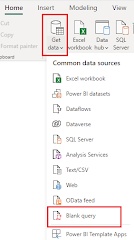
How to create calendar table by using power query Step 1: Click on Get Data Step 2: Select Blank Query Step 3: Click on Advance Editor in the Home Tab of Power Query Editor Step 4: Remove the syntax and paste below mentioned syntax Syntax: Paste below mentioned syntax let     StartDate = #date(2024, 1, 1),     EndDate = #date(2024, 12, 31),     NumberOfDays = Duration.Days(EndDate - StartDate),     DateList = List.Dates(StartDate, NumberOfDays+1, #duration(1, 0, 0, 0)),     TableFromList = Table.FromList(DateList, Splitter.SplitByNothing()) in     TableFromList If you want a calendar for a different range, modify the StartDate and EndDate variables accordingly. Step 5: Click "Done" in the Advanced Editor. Step 6: You may want to add additional columns to your calendar table, such as Year, Month, Quarter, Day of Week, etc. Here's an example of how to add a Year column: In Power Query Editor, select the "Date" column. Go to th...